
We are pleased to announce the release of Stream Events, a new real-time event logging system now available on 2.15.3. Designed to bring greater visibility of what is happening on the panel and services. Stream Events captures and stores a comprehensive record of activities across the panel, from live DJ connections, service configuration updates, and automated system actions.
What are Stream Events?
Stream Events is a new real-time event logging system for the Media Control Panel. Every action across the panel and streaming services, from a DJ connecting live to an automated suspension, is now captured, timestamped, and stored in a filterable log accessible to customers for their own services and admins across the entire panel.
Whether you are an reseller overseeing hundreds of services or a broadcaster managing your own station Stream Events provides you a clear trail of everything happening.
Key Features
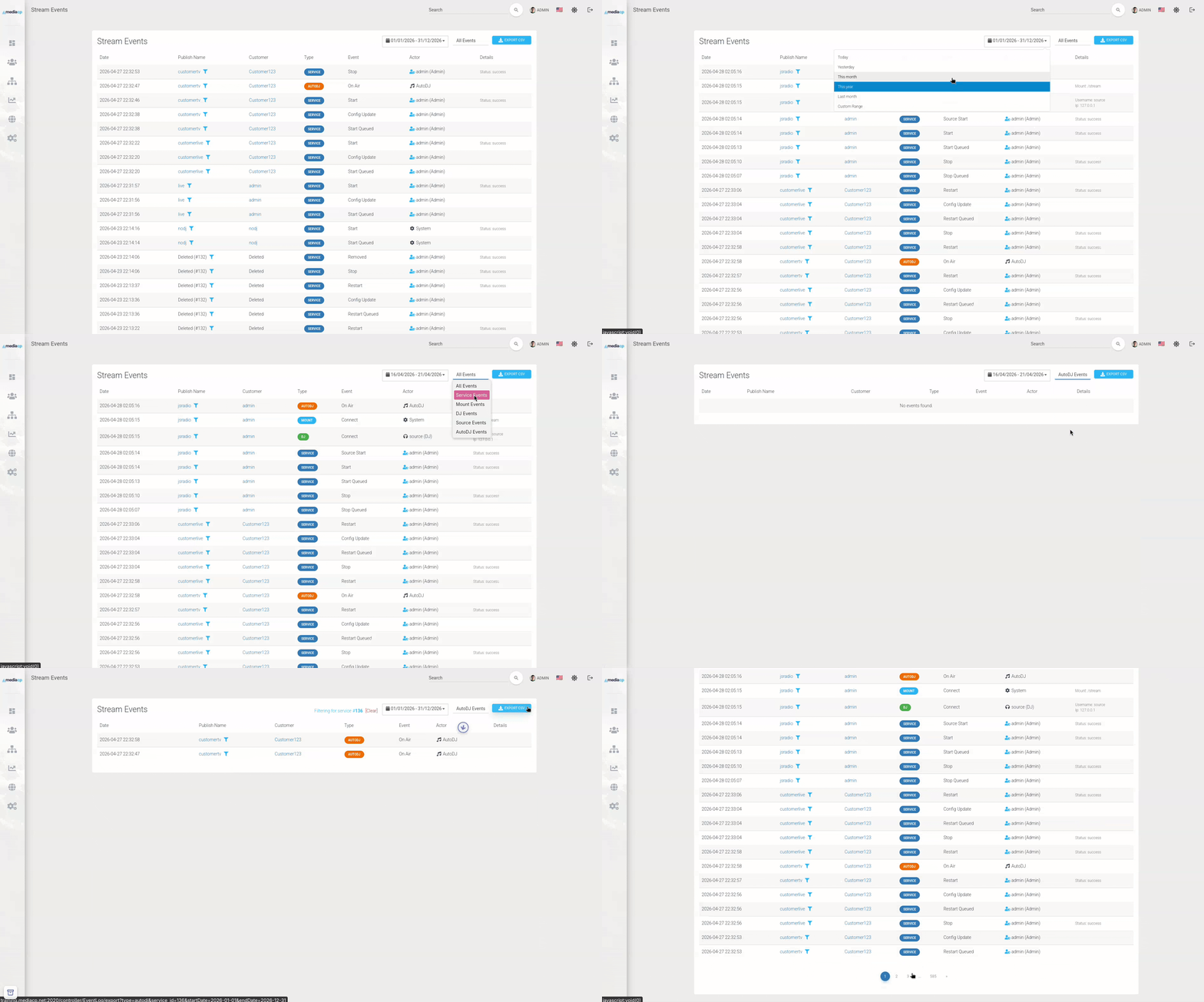
Event Log Interface
A new Stream Events item has been added to the Media Service side menu, giving you instant access to logs scoped to that service. Administrators also have a global view accessible from the main sidebar, sitting between Email Templates and Announcements.
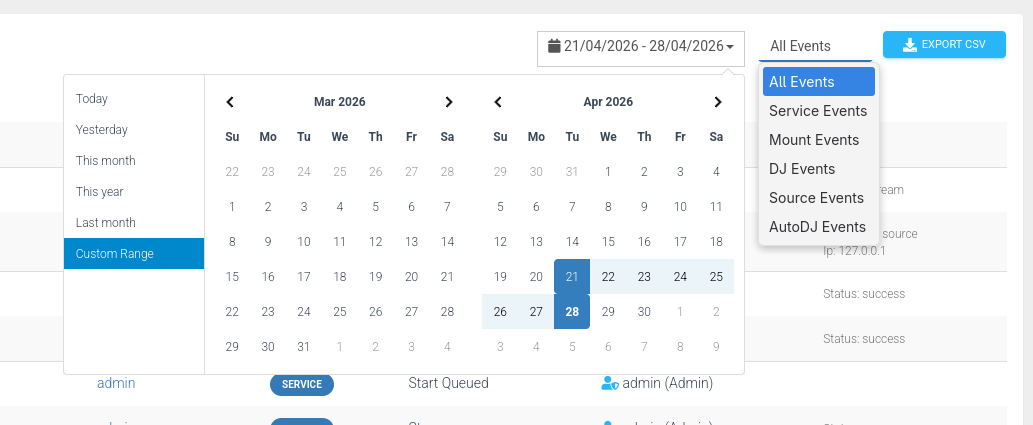
Filterable Logs
Events can be filtered by category; All Events, Service, Mount, DJ, Source, and AutoDJ as well as by date range making it easy to monitor and find the exact events you are looking for.
What Gets Logged?
Stream Events captures a comprehensive range of activity, including:
- Service events — Start, Stop, Restart, Suspend, Unsuspend and Remove actions, along with the user or system that triggered them
- Source events — Source Start, Stop, and Restart events
- DJ events — Connect, Disconnect, On Air (takeover), and Kicked events, including the DJ name, source IP, and takeover flag
- AutoDJ events (Liquidsoap & TV Station)— AutoDJ On Air at startup or when a live DJ disconnects and the system resumes control
- Mount point events (Icecast & Icecast KH) — Mount Connect and Mount Disconnect via the
mount_addandmount_deletehooks - Configuration changes — Config Update events whenever service settings are modified
- Song title updates — Logged when a title is manually changed from the service dashboard
- Automated system events — Bitrate abuse warnings, automated suspensions (disk, bandwidth, or reseller transfer limits), and service stops due to account expiry or existing suspension, all recorded under the System actor
Every logged event records the user, DJ, or system responsible for the action.
CSV Export
Looking to share logs or run your own analysis? The Export CSV button lets you download the current filtered view, including service and customer information when used from the global admin panel.
30-Day Retention
To maintain performance logs are automatically retained for 30 days, after which they are cleaned up by the daily maintenance task. This keeps your database lean without sacrificing meaningful historical visibility.
Access & Security
Stream Events respects your existing role hierarchy:
- Administrators have access to all event logs across every service via the global view
- Resellers can view logs for their own servers and their customers’ servers only
- Customers can view logs for their own services only
The Stream Events page also remains accessible even if a service is suspended or expired, so you can always review what happened.
API Access
Stream Events is fully accessible via the MediaCP API:
- Global endpoint:
/controller/EventLog - Service-specific endpoint:
/controller/EventLog/{id}
Both endpoints support filtering by event type, service ID, and pagination, and return structured JSON responses including logs, total, page, and totalPages, along with formatted model attributes. Full documentation is available in our Postman API Docs.
For more information on the Media Control Panels powerful features check out our detailed Admin and User Manuals:
